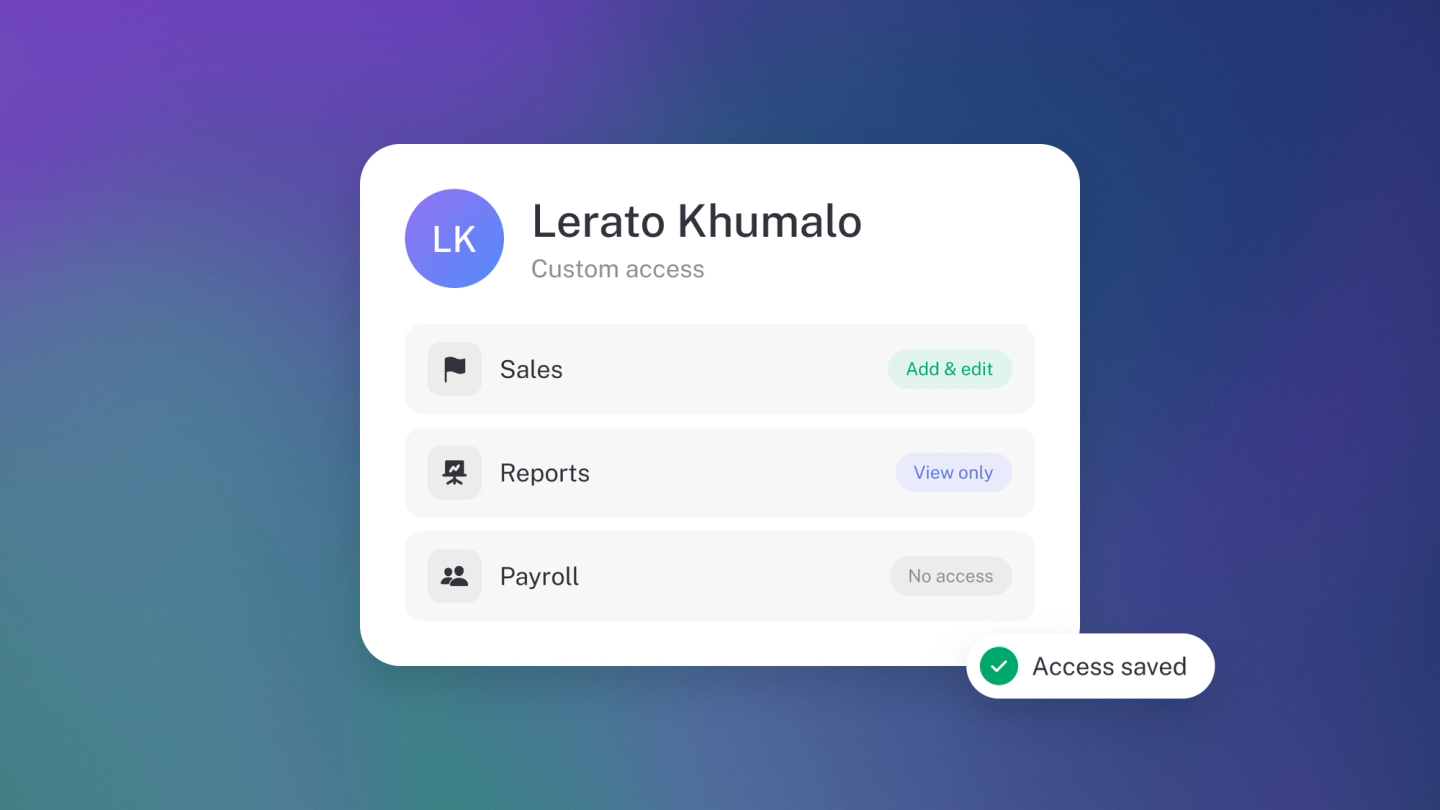
Not everyone who helps with your books needs to reach all of them. A salesperson only needs to raise invoices, your auditor only needs to look, and your bookkeeper shouldn't be able to close a bank account. Give each person on your team the access that fits the job, and stub locks everything else for them.
Pick their access when you invite them
Go to Settings → Team and click Member. Enter their Full name and Email address, choose what they can do from the Access picker, and click Add.
They get an emailed invitation and show as Pending until they accept. They join with the access you picked. You can't change a pending member's access, so if you picked the wrong one, remove them and invite them again.
Owners and administrators can add members. Only an owner can invite someone as an Owner or an Administrator.
The roles
- Owner — Full access to everything, including banking, team members and settings. A business can have several owners.
- Administrator — Everything an editor can do, plus running payroll (pay runs and payslips), deleting bank accounts, and managing team members and the subscription. Only an owner can reset or delete the business.
- Editor — Full accounting access. Editors can work with bank accounts but can't delete them, and can't manage team members.
- Invoicing only — Can raise invoices and quotes, and add the customers to raise them for. Can't change inventory, expenses, banking or settings, and sees only the documents they created themselves.
- View only — Can see the books, but can't change anything.
- Custom — You choose what they can see and change in each part of the business. See Build a custom role below.
New members default to Editor. For a bookkeeper or accountant who works on your books, Editor is usually right. For an auditor or investor who only needs to look, use View only.
Which plan includes which role
| Role | Plan |
|---|---|
| Owner, Administrator, Editor | Steady Startup and up |
| Invoicing only, View only, Custom | Growing Business and up |
On Steady Startup you'll still see the Growing Business roles in the picker, marked with a crown. Pick one and stub shows you what upgrading gets you.
Change someone's access
On Settings → Team, click the member, choose a new role from Access, and click Save. The change applies straight away. If they're signed in, stub reloads the business for them with their new access.
Only an owner can change an owner's or an administrator's access. To make someone an owner, or to step down yourself, see Add or change a business owner.
Build a custom role
Custom access is for someone who doesn't fit a role. Say they run your purchasing and need to see sales, but shouldn't touch payroll.
- On Settings → Team, click a member who has accepted their invitation.
- Choose Custom from Access. The Custom access window opens.
- Tick what they can do in each part of the business, then click Save.
The grid starts from the role they hold now, so nothing changes until you tick or untick something. Each row is one part of the business: Sales, Customers, Products & stock, Purchases, Suppliers, Payroll, Accounting, Reports, Bank accounts, Transactions, Business settings, Team and more. Each column is a level of access:
- View — see it.
- Add & edit — create new records and change existing ones.
- Delete — remove records.
- Manage — the settings that control that part of the business.
Every level needs View, so ticking any other box ticks View too. Ticking Manage also ticks Add & edit and Delete. Unticking View clears the whole row. A dash means that level doesn't apply to that part of the business. A greyed-out box is one you can't grant yourself.
Tick Only sees the invoices and orders they created to keep their sales to their own work, the way Invoicing only does. If you start from Invoicing only, this box is already ticked.
To change a custom member's access later, click them and choose Edit permissions. Custom can't be picked when you invite someone. Invite them with the closest role, then switch them to Custom once they've joined.
Owners and administrators can set custom access.
What your team sees
stub never hides a part of the business from someone without saying so.
- A section they can't open stays in the menu, dimmed and with a padlock.
- If they follow a link to a page they can't see, stub shows No access and takes them back to a part of the business they can open.
- A button they can't use, like Save or Delete, shows a padlock. Hover over it to see why: "Your role is View only, so ask an owner for access."
When they sign in, stub opens on the first section they can see. A member on Invoicing only, for example, starts on Sales.
Remove a member
On Settings → Team, click the member, then the trash button, and confirm. Their access ends immediately. Everything they created stays in your books. Only an owner can remove a member.
Tip: Check your team list when someone's job changes, not only when they leave. Lower their access as soon as they no longer need it.