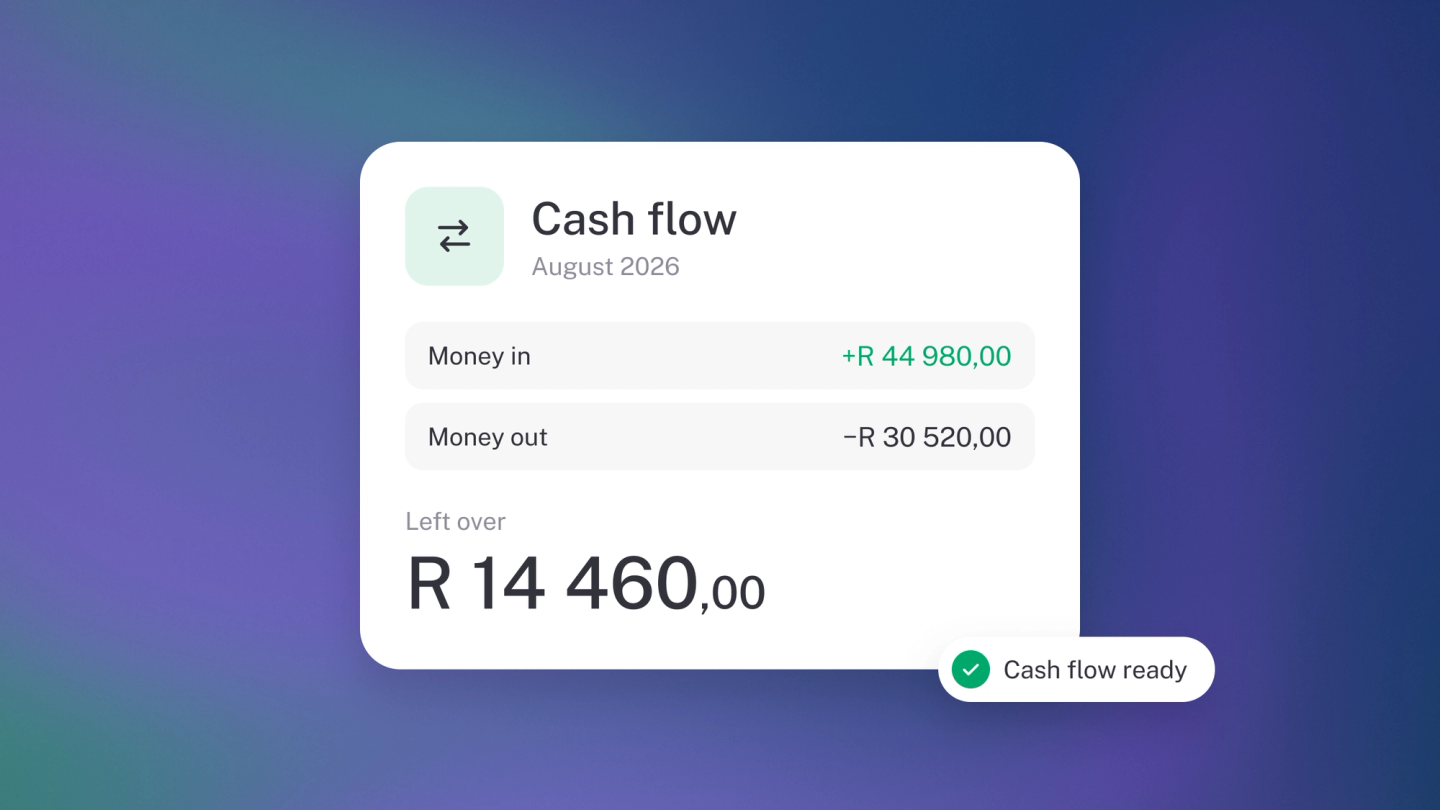
Profit tells you whether the business is working. Cash tells you whether it survives the month. The Cash Flow report is the second one: it counts only the money that actually moved through your accounts, so it is the figure to trust when you are deciding whether you can pay a supplier, make payroll or take on a cost this week.
Read monthly, it also shows you the shape of your business — the months where money reliably goes out before it comes in. That pattern is the thing you plan around; most cash crises are seasonal and visible in advance.
What to know before you read it
- Cash Flow and Profit & Loss will disagree, and both will be right. Profit & Loss counts an invoice the day you send it; Cash Flow counts it the day the money arrives. Invoice a customer R30,000 in May and get paid in June, and May's Profit & Loss shows R30,000 while May's Cash Flow shows nothing. Profit & Loss asks "is this business working?" Cash Flow asks "can I pay the rent on Friday?"
- A gap between the two is a collections problem, not an accounting error. If sales look healthy and cash doesn't, the money is sitting in invoices your customers haven't paid. Go to Sales, filter to what's overdue, and start chasing.
- It only counts what stub knows about. Cash paid or received outside your connected accounts has to be recorded before it shows up here — see Record income and expenses, and give each cash pot its own account so the figure is countable: Set up your cash accounts.
- Check the warnings at the top. stub flags uncategorised transactions and missing opening balances at the top of the report — both throw the figures out, so clear them before you trust a number.
- Tags narrow it to a project or branch. Cash Flow doesn't offer the By tag column split that Profit & Loss does, but the Tag filter in the header narrows the whole report to one tag — so you can still see whether a job generates cash or quietly consumes it.
- The Bank account filter narrows it to one account. Pick an account in the Bank account filter in the header to see the cash in and out of just that account, such as your cheque account. Only that account counts as cash, so money moved between it and your other accounts counts as cash in or out, and the report starts from that account's own opening balance.
Where to find it
Go to Reports in the sidebar and pick Cash Flow — or, from any report, click its name at the top and choose Cash Flow from the dropdown. The date control at the top sets the period, the Compare selector breaks it down Monthly or Yearly, and the Tag and Bank account filters narrow it to one project, branch or account.
Read the report
- Cash in — money that actually landed in your accounts.
- Cash out — money that actually left them.
- Net — the difference. Positive means your balance grew over the period; negative means it shrank.
Download it
Click ··· → Download, pick PDF or CSV, set the dates and download — the details are in Export & share a report.
Check it against your dashboard
The Cashflow tile on Insights gives you a quick read without opening the report: money in less money out for the period you've picked, and a click opens this report. To see just one side, open the tile's ··· menu → Configure and change Show to Money in or Money out.
The tile leaves out money moved between your own bank accounts — it isn't cash coming in or going out, just cash changing pockets. The report's default view leaves them out too, unless you filter it to one bank account.
Tip: Cash flow tight while sales look healthy? The money is sitting in unpaid invoices. Go to Sales, filter to what's overdue, and start chasing. See Track & chase unpaid invoices.